Plotly IBCS Chart Challenge

Plotly Challenge Submission: Recreating IBCS 04A (C04 Multi tier Bar Chart)

What I built

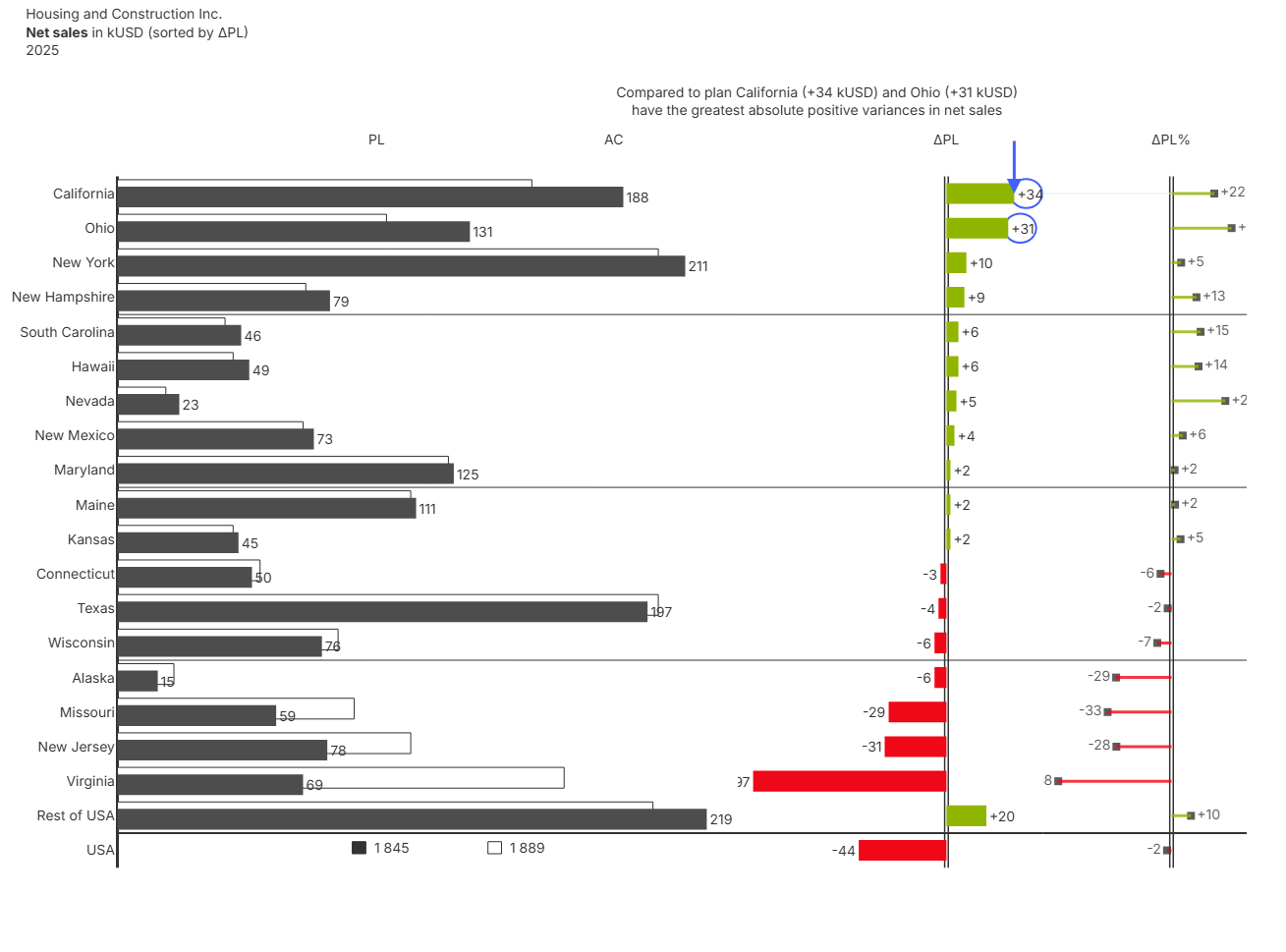
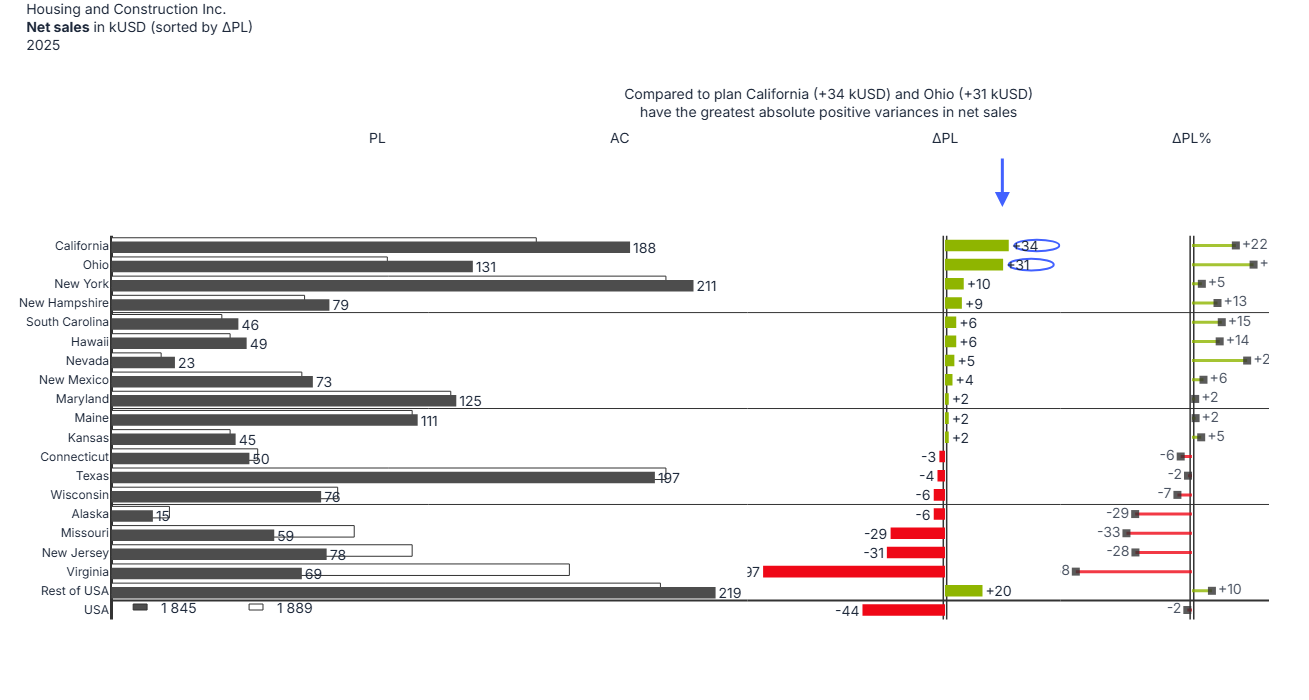
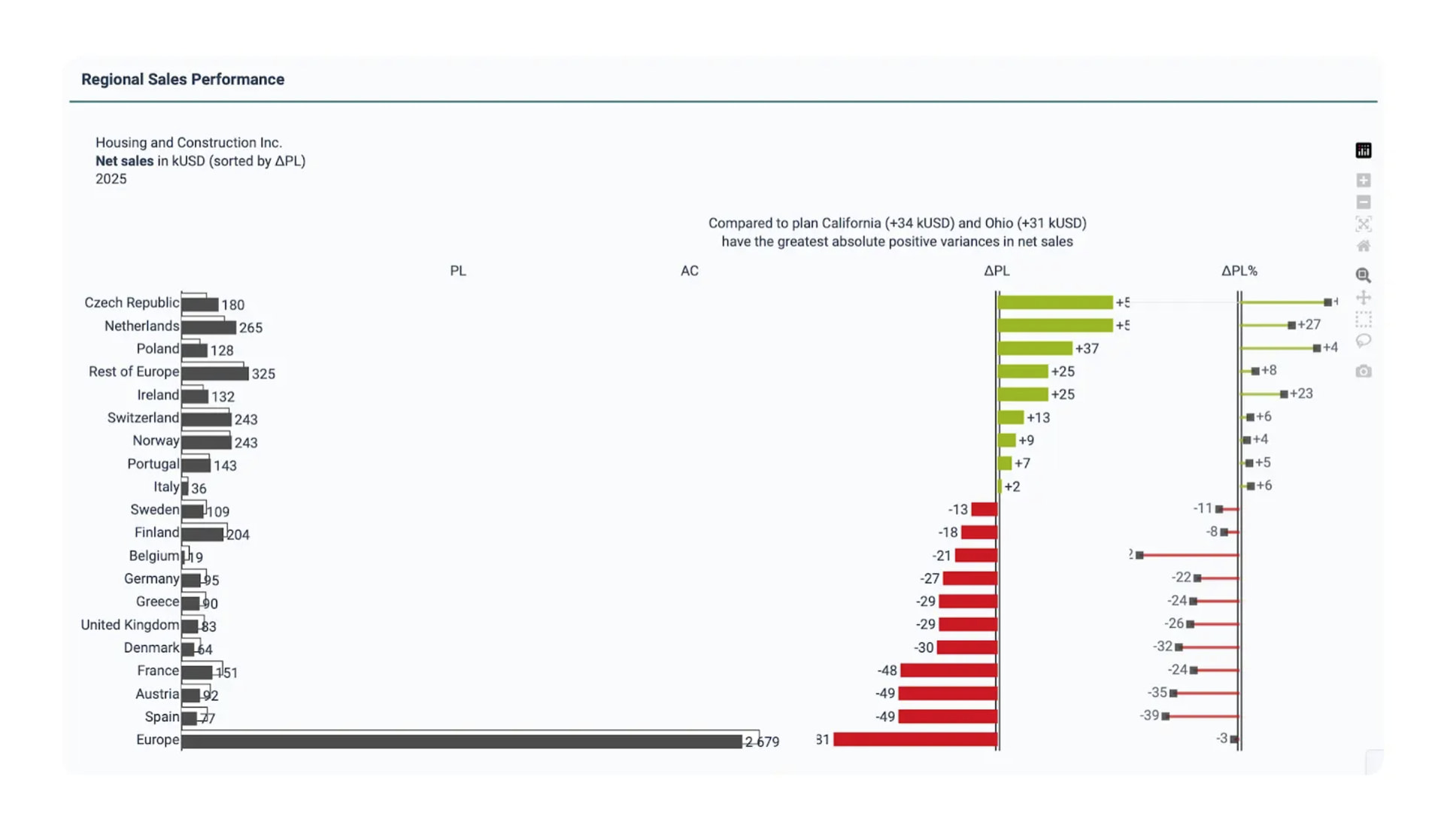
For this challenge I recreated the IBCS C04 multi tier bar chart (example 04A ) that compares Plan (PL) vs Actual (AC) net sales across regions, then shows both absolute variance (ΔPL) and relative variance (ΔPL%) in two additional panels.

Original reference

My process

1) First pass: prompt only, aiming for an 80 percent draft

I started by prompting for the overall chart structure and core encodings: three panels, PL vs AC layering, ΔPL bars, and ΔPL% pins. This was driven by a shorter prompt:

Chart:
- Type: IBCS C04 multi-tier bar chart with three panels using subplots
- Panel 1: Layered horizontal bars comparing Plan(PL) vs Actual(AC) values
  - PL bars: White fill with dark outline, positioned slightly higher(y offset +0.1)
  - AC bars: Solid dark gray fill(# 4D4D4D), positioned slightly lower (y offset -0.1)
  - Bar width: 0.6 with ~2/3 overlap
  - Data labels on AC bars only, positioned outside (e.g."1234")
- Panel 2: Horizontal variance bars(ΔPL) with dual baseline
  - Green bars(#8fb500) for positive variance, red bars (#ef0817) for negative
  - Data labels showing signed values positioned outside (e.g., "+123" or "-45")
  - Dual vertical baseline lines at zero with small offset 
- Panel 3: Variance percentage pins (ΔPL % )
  - Pin heads: Dark square markers at percentage value
  - Pin stems: Colored lines from zero to value(green/red)
  - Data labels showing signed percentage values positioned outside (e.g., "+15" or "-8")
  - Dual vertical baseline lines at zero with small offset

Compute additional columns:
- Calculate `Delta_PL` as difference between `Actual_kUSD` and `Plan_kUSD`
- Calculate `Delta_PL_Pct` as percentage variance: (Delta_PL / Plan_kUSD) * 100

Sort data:
- Separate data into three groups: USA row, Rest of USA row, and other regions
- Sort other regions by `Delta_PL` in descending order
- Concatenate in final order: other regions, Rest of USA, USA

Labels:
- Chart title:
	- Text: "Housing and Construction Inc.<br><b>Net sales</b> in kUSD (sorted by ΔPL)<br>2025"
	- Position: xanchor="left", yanchor="top"
- Y-axis labels: Region names displayed on left side Reversed(top to bottom)
- X-axis labels above chart area:
  - Panel 1: "PL        AC"
  - Panel 2: "ΔPL"
  - Panel 3: "ΔPL%"

- Typography:
  - All text: 14px, color  # 333333
  
- Axes:
  - All gridlines, and tick marks hidden
  - X-axes: No labels or ticks visible
  - Panel 1 x-axis range: 0 to max_sales * 1.10 (excluding USA)
- Special elements:
  - Thick separator line(2px) above USA row across all three panels, no gaps between the panels
  - Don't show USA bars in Panel 1, show legend-like totals instead
	- Render 2 squares in paper coords where the 
	  - Filled square for AC (fill #333333, outline #333333)
	  - Hollow square for PL (fill white, outline #333333)
	- Place numeric text next to each square with thousands separated by spaces
  - Show bars for USA for Panel 2 and Panel 3

This version captured the broad structure, but it was not fully reliable. Re running the same prompt sometimes missed details like:

  • Some data labels
  • The hollow baseline
  • Correct placement or styling of smaller elements

2) Second pass: direct code edits for the hard parts

After hitting the point where prompt iteration was producing diminishing returns, I focused on the remaining elements that require precision and consistency:

  • Titles, headers, and subtitle placement
  • Callouts (circles and arrow)
  • Separators and line weights
  • Spacing, margins, and layout stability

At that point it was faster and more deterministic to edit the generated code directly.

This is the version I am happiest with and it matches the reference very closely.

3) Third pass: turning the spec back into a huge prompt

I also experimented with using the generated spec and using it as a prompt to reproduce the polished result. This did work to a degree, but the prompt became extremely long, mainly because annotations and layout constraints are easy to break unless everything is specified explicitly.

Multi-tier Bar Chart: Regional Sales Performance (Prompt-Hardened Spec)

Goal:
- Recreate the chart layout/style from the reference: a 3-panel IBCS C04 chart with layered PL/AC bars, ΔPL variance bars, and ΔPL% pin chart.
- PRIORITY: preserve layout proportions, vertical spacing, and annotation placement. Avoid any responsive CSS sizing.

Data:
- Input columns: `Region`, `Plan_kUSD`, `Actual_kUSD`
- Compute:
  - `Delta_PL = Actual_kUSD - Plan_kUSD`
  - `Delta_PL_Pct = (Delta_PL / Plan_kUSD) * 100`
- Sort order:
  - Extract rows where Region == "USA" and Region == "Rest of USA"
  - Sort all other regions by `Delta_PL` descending
  - Concatenate: other regions (sorted) + Rest of USA + USA

Critical Y-axis implementation (DO NOT use categorical y):
- Define:
  - `regions = df_sorted["Region"].tolist()`
  - `y_positions = list(range(len(regions)))`
- All traces must use numeric y positions (`y=[i]`), NOT `y="Region"`.
- Y-axis must be:
  - `tickmode="array"`
  - `tickvals=y_positions`
  - `ticktext=regions`
  - `autorange="reversed"`

Subplots (must match exactly):
- Create the figure using:
  - `make_subplots(rows=1, cols=3, shared_yaxes=True)`
  - `specs=[[{"type":"bar"}, {"type":"bar"}, {"type":"scatter"}]]`
  - `column_widths=[0.55, 0.27, 0.18]`
  - `horizontal_spacing=0.0`

Sizing (MUST be explicit; do NOT let the environment shrink the plot area):
- Hard rules:
  - Set `fig.update_layout(autosize=False, height=height_px)`.
  - Do NOT use viewport-based sizing such as `"calc(100vh - ... )"` anywhere.
  - Do NOT rely on default height.
- Use this height formula:
  - `height_per_row = 32`
  - `min_height = 700`
  - `height_px = max(min_height, len(regions) * height_per_row)`
- Set fixed margins (do not allow auto-expansion):
  - `margin=dict(l=110, r=40, t=140, b=60)`
  - Do NOT enable any automatic margin growth to fit annotations.

If a UI container/wrapper is created (Dash/Studio component):
- The chart container must be at least as tall as `height_px`.
- Do NOT set container height via `vh` math (no `calc(100vh - ...)`).
- Prefer a fixed pixel height or a minHeight equal to `height_px`.

Colors (hex):
- Ink: `#333333`
- AC fill: `#4D4D4D`
- Positive: `#8fb500`
- Negative: `#ef0817`
- Callout blue: `#4261ff`
- White: `#ffffff`

Global fonts:
- Use font size 14 everywhere: trace labels, axis tick fonts, title, headers, annotations.
- Enforce:
  - `uniformtext=dict(minsize=14, mode="show")`
  - `fig.update_traces(textfont=dict(size=14), selector=dict(type="bar"))`
  - `fig.update_traces(textfont=dict(size=14), selector=dict(type="scatter"))`


Axes styling:
- For all X axes:
  - `showgrid=False`, `showline=False`, `zeroline=False`, `ticks=""`, `showticklabels=False`
- X ranges:
  - Panel 1 (col 1): `[0, max_sales * 1.10]` where `max_sales = max(max(Plan_kUSD), max(Actual_kUSD))` computed excluding USA
  - Panel 2 (col 2): `delta_range = [min_delta - pad_delta, max_delta + pad_delta]` where `pad_delta = max(abs(min_delta), abs(max_delta)) * 0.10` computed excluding USA
  - Panel 3 (col 3): `pct_range = [min_pct - pad_pct, max_pct + pad_pct]` where `pad_pct = max(abs(min_pct), abs(max_pct)) * 0.10` computed excluding USA
- Y axes:
  - col 1 shows tick labels (regions)
  - col 2 and col 3 hide y tick labels (`showticklabels=False`)

Panel 1: PL vs AC layered horizontal bars
- Params:
  - `bar_width = 0.6`
  - `bar_offset = 0.1`
- For each region index `i` (skip Region == "USA" in panel 1 only):
  - PL bar:
    - `go.Bar(orientation="h", x=[plan_val], y=[i - bar_offset])`
    - Fill: white
    - Outline: ink width 1
    - No label text
  - AC bar:
    - `go.Bar(orientation="h", x=[actual_val], y=[i + bar_offset])`
    - Fill: `#4D4D4D`
    - Label: outside, formatted with spaces as thousands separators

Panel 1 baseline:
- Add vertical baseline at x=0:
  - `fig.add_shape(type="line", x0=0, x1=0, y0=-0.5, y1=len(regions)-0.5, line=dict(color="#333333", width=3), layer="below", row=1, col=1)`

Panel 2: ΔPL variance bars
- For each region index `i` (including USA):
  - `delta_val = Delta_PL`
  - Color: green if delta_val >= 0 else red
  - `go.Bar(orientation="h", x=[delta_val], y=[i], width=0.6)`
  - Label: outside text `f"{delta_val:+.0f}"` (font size 14)

Panel 2 hollow baseline (two lines, NOT one line):
- Compute:
  - `delta_range_width = delta_range[1] - delta_range[0]`
  - `baseline_gap_frac = 0.006`
  - `delta_offset = delta_range_width * baseline_gap_frac`
- Add two vertical lines at x = -delta_offset and x = +delta_offset:
  - `line color #333333`, `width 1.5`, `layer="below"`, spanning `y=-0.5 .. len(regions)-0.5`, `row=1 col=2`

Panel 3: ΔPL% pin chart
- For each region index `i`:
  - `pct_val = Delta_PL_Pct`
  - Stem color: green if pct_val >= 0 else red
  - Pin head + label:
    - `go.Scatter(mode="markers+text", x=[pct_val], y=[i])`
    - Marker: square, size 8, color #333333
    - Text label: `f"{pct_val:+.0f}"` positioned middle-right if positive else middle-left
  - Stem:
    - `go.Scatter(mode="lines", x=[0, pct_val], y=[i, i], line=dict(color=stem_color, width=3))`

Panel 3 hollow baseline (two lines, scaled for pixel-equal spacing vs panel 2):
- Compute:
  - `pct_range_width = pct_range[1] - pct_range[0]`
  - `baseline_gap_frac = 0.006`
  - `width_ratio = 0.27 / 0.18`
  - `pct_offset = pct_range_width * baseline_gap_frac * width_ratio`
- Add two vertical lines at x = -pct_offset and x = +pct_offset:
  - `line color #333333`, `width 1.5`, `layer="below"`, spanning `y=-0.5 .. len(regions)-0.5`, `row=1 col=3`

Separators:
- Separator above USA row:
  - If "USA" in regions: `usa_index = regions.index("USA")`
  - Add a horizontal line across each panel domain at `y = usa_index - 0.5`
  - Color #333333 width 2
- Group separators after specific regions:
  - After: New Hampshire, Maryland, Wisconsin
  - Add horizontal line across each panel domain at `y = idx + 0.5`
  - Color #333333 width 1

Callouts:
- Draw circles around the ΔPL labels for California and Ohio in panel 2:
  - Blue outline #4261ff width 2, transparent fill, `layer="below"`
  - Circle center X is based on the label position (delta value ± label_offset), not at x=0
- Add a blue arrow pointing down toward the circled area:
  - Color #4261ff, width 3, arrowhead 2

Title + annotations:
- Title (layout.title):
  - Text: `Housing and Construction Inc.<br><b>Net sales</b> in kUSD (sorted by ΔPL)<br>2025`
  - Position: x=0.02, y=0.98, xanchor="left", yanchor="top"
- Subtitle annotation: "Compared to plan California (+34 kUSD) and Ohio (+31 kUSD)<br>have the greatest absolute positive variances in net sales" (added as separate annotation after layout update, positioned at x=0.62, y=1.0, yanchor='bottom', yshift=18, font size 14)
- Panel headers (annotations):
  - "PL" and "AC" above panel 1 at computed x positions within xaxis domain:
    - `pl_x = x1_domain[0] + (x1_domain[1] - x1_domain[0]) * 0.42`
    - `ac_x = x1_domain[0] + (x1_domain[1] - x1_domain[0]) * 0.80`
  - "ΔPL" with xref="x2" x=0
  - "ΔPL%" with xref="x3" x=0
  - All at y=0.985 (paper), yanchor="bottom", font size 14

Important: prevent annotations from shrinking the plot:
- Keep the fixed margins from the Sizing section (`t=140`, `b=60`).
- Do NOT increase top margin dynamically to accommodate title/subtitle/headers.

USA legend-like totals (bottom-left):
- Render 2 squares in paper coords at y_base=0.06:
  - Filled square for AC (fill #333333, outline #333333)
  - Hollow square for PL (fill white, outline #333333)
- Place numeric text next to each square with thousands separated by spaces

It is a decent output, but the prompt length reduces the value of prompting as the primary workflow.

I also burned through a lot of AI credits while iterating on prompts and chasing layout edge cases. Shoutout to Matthew for sponsoring me when I ran out of credits so I could finish the submission.

Takeaways

This was a fun exercise and it gave me a workflow I would actually use:

  • Use a prompt to get an initial draft quickly
  • Treat that draft as a starting point
  • Switch to direct code edits to finish the last 20 percent where precision matters most

Thanks for putting up this challenge. It was a great way to explore the practical boundary between prompting and code first chart building.
5 Likes

Thank you @ChartCrimes for the experiment and for sharing the three steps you took.
I’m not surprised that editing the code does indeed generate the best results . Nicely done!

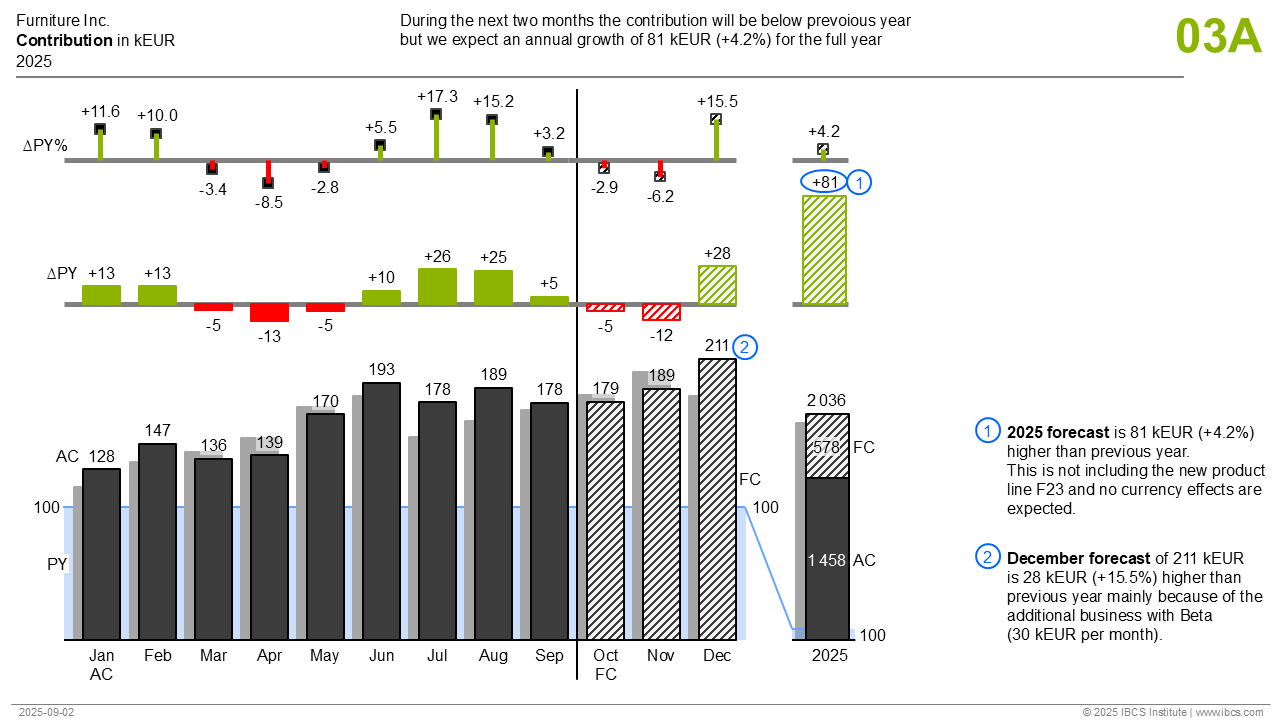
Recreating IBCS 03A (Multi-tier column chart)

Goal

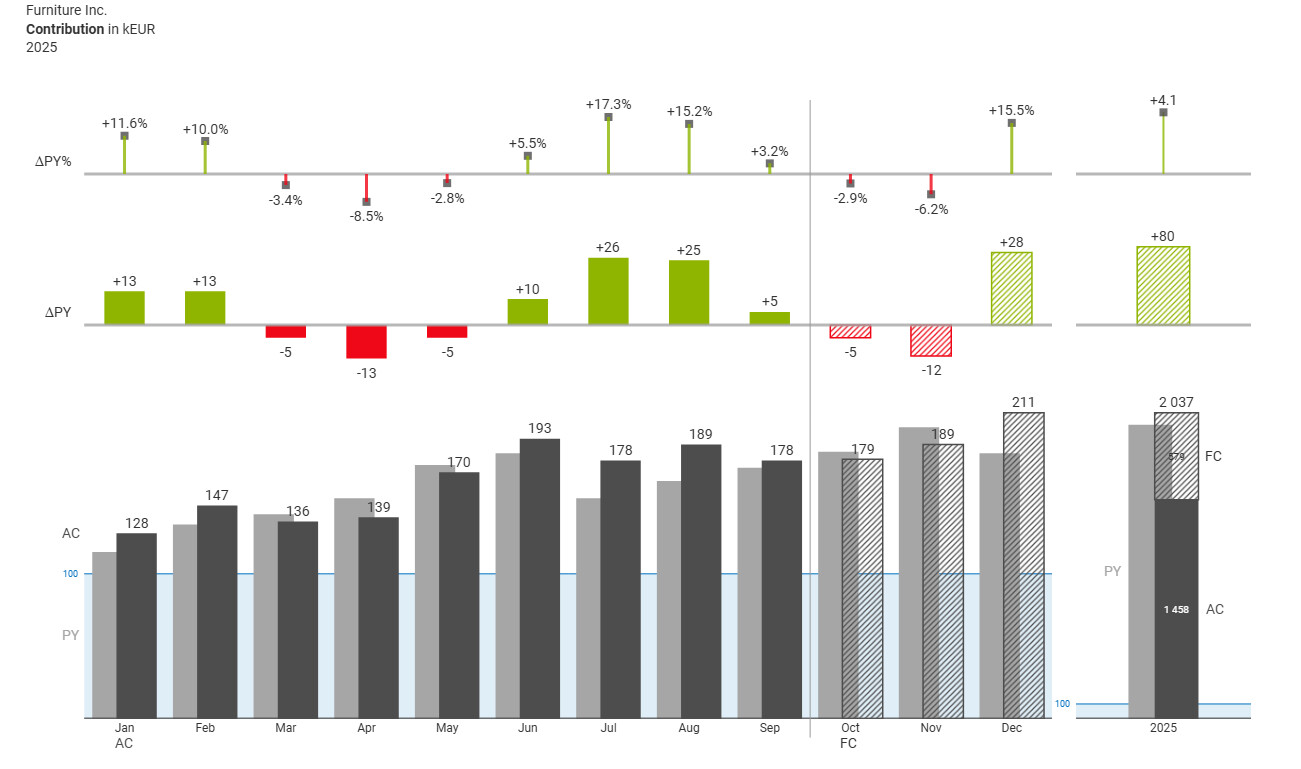
This time I wanted to recreate the IBCS 03A multi-tier column chart. The biggest challenge in this one was the different scale of the monthly vs total bars.

Approach

I tried to structure prompts more deliberately by separating chart structure, colors, labels and overarching IBCS principles rather than cramming everything into a single prompt. To achieve this, I made use of the custom context and theme prompts in addition to the main chart prompt.

IBCS Principles and Colors

You are building charts that follow IBCS (International Business Communication Standards).

Key principles:
- Maximize data-ink ratio. No chartjunk, no 3D effects, no gradient fills, no decorative elements.
- White background, no grid lines, no axis lines except explicit baselines.
- Semantic color only: color encodes meaning (actual vs plan, positive vs negative variance), never decoration.
- Consistent abbreviations: AC = Actual, PY = Previous Year, PL = Plan, FC = Forecast.
- Variance notation: prefix with Greek delta. ΔPY = absolute variance to previous year, ΔPY% = percentage variance to previous year.
- Forecast periods are distinguished from actuals using diagonal hatching (forward-slash pattern fill), never by color alone.
- Data labels appear directly on or next to their visual mark; external legends and axis tick labels are avoided when possible.

Color rules (from IBCS standard):
- Dark grey (#4D4D4D): AC / Actual values
- Light grey (#A6A6A6): PY / Previous Year values
- Green (#8FB500): positive variances (ΔPY, ΔPY%)
- Red (#EF0817): negative variances (ΔPY, ΔPY%)
- White (#FFFFFF) with dark outline: PL / Plan values
- Dark gray (#333333): all labels, text, and annotations
- Blue (#4261FF): callout elements

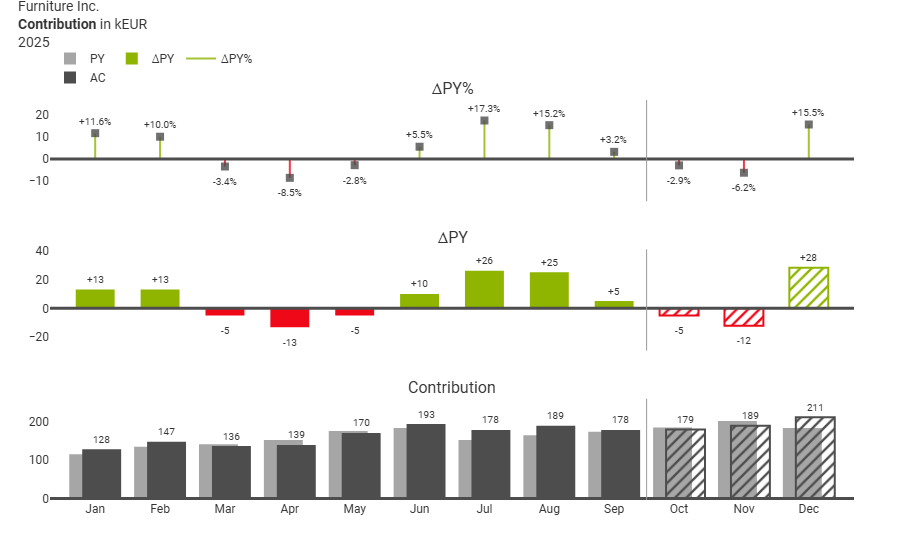
Chart Prompt - Phase 1: Monthly panels only

I started with a simpler prompt targeting just the three monthly panels without the annual summary column.

Structure
- IBCS C03 multi-tier bar chart 
- Single figure with 3 three horizontal panels using subplots
Chart:
	- Bottom panel: layered vertical columns for monthly contribution (kEUR) with thick light grey baseline
		- PY bars: light gray, 0.6 width, positioned slightly left(x offset - 0.1)
		- AC bars: dark gray, 0.6 width, positioned slightly right (x offset +0.1) for Jan–Sep
		- FC bars: outlined, diagonal hatched dark gray, 0.6 width, positioned slightly right (x offset +0.1) for Oct–Dec
	- Middle panel: Vertical variance bars(ΔPY) with thick light gray baseline labeled "ΔPY"
		- Green bars for positive variance, red bars for negative, 0.6 width
		- For forecast months (Oct–Dec), use diagonal hatching, 0.6 width
	- Top panel: Variance percentage pins (ΔPL % ) with thick gray baseline labeled "ΔPY%"
		- Pin heads (markers): Dark gray square markers at percentage value
		- Pin stems (line): Colored vertical lines from zero to value (green/red) (Scatter plot with connecting lines showing) 

Styling

- Add a vertical separator line between month Sep and Oct

Labels:
- Chart title:
	- Text: "Furniture Inc.<br><b>Contribution</b> in kEUR<br>2025" top left, left aligned

- Bottom Panel:
	- Place value labels above AC and FC bars, no labels for PY
	- Label x-axis with months Jan to Dec
	
- Middle Panel:
	- Signed integer labels (e.g. +13, -5) values positioned outside

- Top panel:
	- Signed integer percentage labels (e.g., "+15%" or "-8%") values positioned outside

- All Panels:
      - No Y-Axis, no Y-axis labels, No gridlines

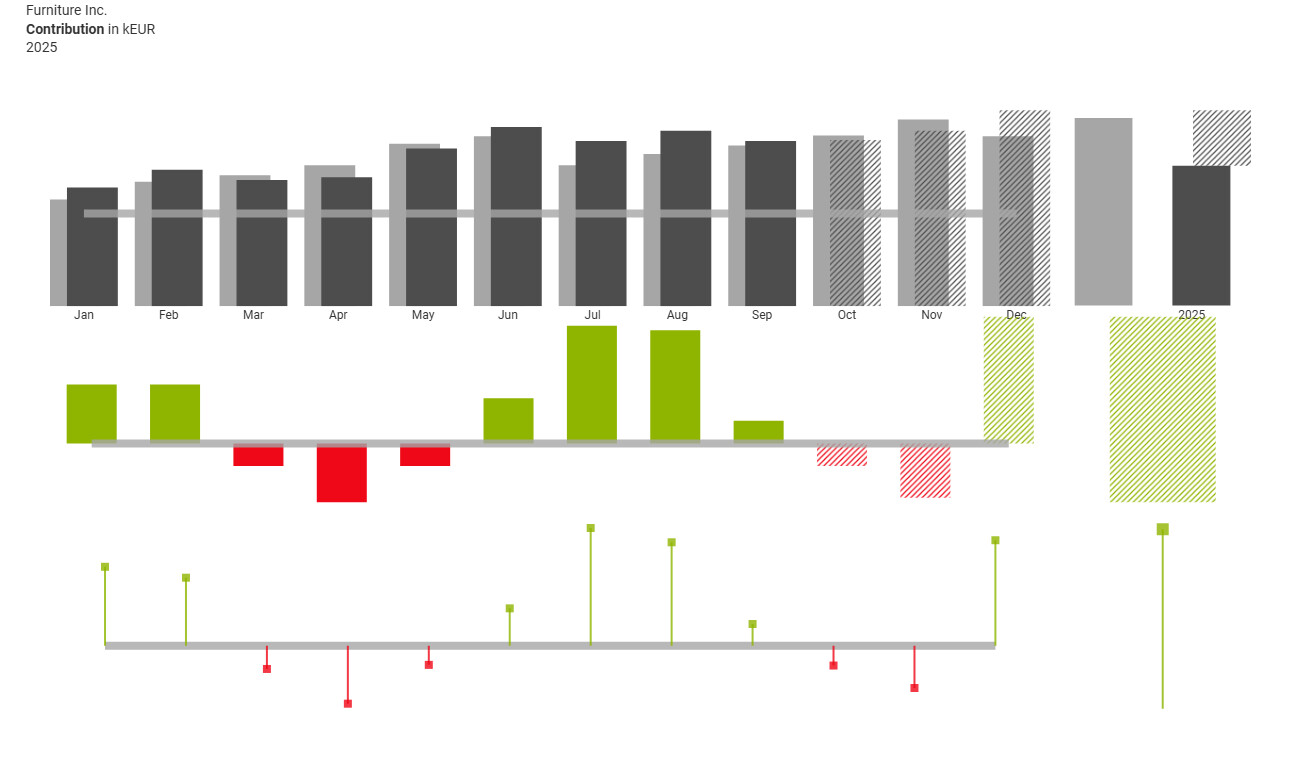
Prompt-only Result:

Chart Prompt Phase 2: Full chart with annual summary

I then extended the prompt to the full 3×2 subplot grid, adding the annual “2025” summary column with stacked AC/FC bars, a single ΔPY bar, and a single ΔPY% pin.

Structure
- IBCS C03 multi-tier bar chart
- Single figure using a 3x2 grid of subplots (3 rows, 2 columns)
  - Column 1 (left, ~85% width): monthly data Jan–Dec
  - Column 2 (right, ~15% width): annual "2025" summary
  - Rows share x-axes within each column. No vertical spacing between rows.
- The annual summary values are computed by summing across all 12 months:
  - Total AC = sum of AC column (Jan–Sep)
  - Total FC = sum of FC column (Oct–Dec)
  - Total Current = Total AC + Total FC
  - Total PY = sum of PY column
  - Total Delta = Total Current - Total PY
  - Total Delta% = ((Total Current / Total PY) - 1) * 100

Chart (right column — annual summary "2025"):
	- Bottom panel: a stacked bar showing the full-year total
		- PY bar on the left (light gray), same style as monthly PY bars
		- On the right, a stacked bar with two segments:
			- Bottom segment: Total AC value (dark gray, solid fill), labeled with value (e.g. "1 458") and "AC" to the right
			- Top segment: Total FC value (hatched, white fill with dark gray outline), labeled with value (e.g. "578") and "FC" to the right
		- Total label above the stacked bar (e.g. "2 036")
		- Same thick light grey baseline as the monthly panel, at y = 100
		- "100" label at the baseline on the right side
	- Middle panel: single hatched green/red bar showing Total Delta
		- Labeled with signed value (e.g. "+81")
		- Same thick light gray baseline at y = 0
	- Top panel: single pin showing Total Delta%
		- Hollow/open square marker (since it includes forecast)
		- Labeled with signed one-decimal value (e.g. "+4.2")
		- Same thick gray baseline at y = 0
	- X-axis label: "2025"

Unfortunately this messed up part of the visuals that looked just fine before the extension. So the prompt-only version didn’t give a good enough result on it’s on, but it provided a good foundation to tweak the code relatively easy.

Prompt-only Result:

Result after code tweaks:

There are still some smaller things that could be improved, for example adding hatching to the pin markers as well, but overall I’m happy with how the final chart turned out.

Thanks again for the challenge, it was a great way to get familiar with Plotly Studio and explore how far structured prompting can take you with more complex IBCS charts.

2 Likes

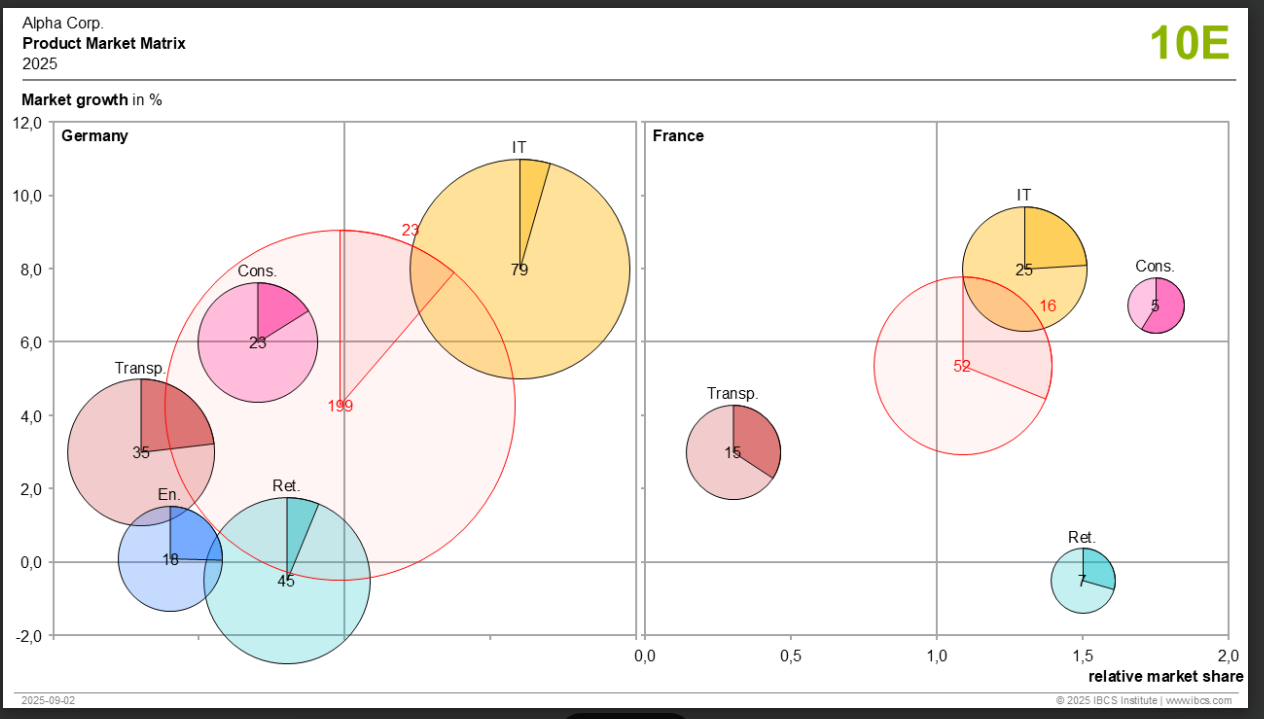
The following chart I created turned out to be slightly more complex, as it involved several steps. Drawing the circles was a big challenge for me, not everything is in place, but I’m happy with the result.

T10 Chart Created – C10: Bubble Charts

This template presents an example of a chart with two value axes. Bubbles representing products are positioned within a coordinate system based on Market Attractiveness and Relative Market Share.

My chart:

Original chart:

1. Create a Dash dashboard 
- Main container: fluid, maxWidth 1400px, padding 20px
- Background: whitesmoke
- All fonts: system default sans-serif

2: Header Section 
Header row with 3 columns:
- Left column (width 4):
  - Line 1: "Alpha Corp" - fontSize 11px, color #666
  - Line 2: "Product Market Matrix" - fontWeight bold, fontSize 14px
  - Line 3: "2025" - fontSize 11px, color #666
- Middle column (width 4): empty spacer
- Right column (width 4): reserved for badges
- Margin: top 3 units, bottom 2 units (Bootstrap spacing)

3: Y-Axis Label Above Charts 
Below header, add label:
- "Market growth " - fontWeight bold, fontSize 11px
- "in %" - fontSize 11px, color #666
- marginBottom 5px

4: Filter Checkboxes 
Filter section:
- White background, rounded corners, padding 3 units, marginBottom 4 units
- Label: "Filter Categories:" - fontWeight bold, marginRight 15px
- Inline checklist with options: IT, Cons., Transp., En., Ret., Total
- All checked by default

5: Matrix Container (Two Side-by-Side) 
Two matrix panels in a Bootstrap row (className "g-0" = no gutter):
- Each column: width 6 (50% of container)
- Inside each column:
  1. Country title: H6 element with className "text-left bold"
     - Text: "Germany" (left panel) / "France" (right panel)
     - Position: ABOVE the matrix container, LEFT-ALIGNED
  2. Matrix container created by create_matrix_container(country_id, show_y_axis)
     - Germany: create_matrix_container('germany', show_y_axis=True)
     - France: create_matrix_container('france', show_y_axis=False)
- Matrix container style:
  - Height: 500px
  - Background: white
  - Border: 1px solid #333
  - Margin: 20px 50px (top/bottom 20px, left/right 50px)
  - Position: relative

6: Matrix Axes Scale Labels & Tick Marks 
Y-Axis scale labels (market growth %):
- On BOTH charts
- Range: -2% to +12%, labels at every 2%: -2, 0, 2, 4, 6, 8, 10, 12
- Each label is an absolute-positioned div:
  - left: -28px (outside the left border), width: 20px, textAlign: right
  - top: formula 100 - ((value+2)/14)*100 %, transform: translateY(-50%)
  - fontSize: 10px, color: #555
  - Zero (0) label has fontWeight: bold
- Each label has a tick mark next to it:
  - left: -5px, width: 5px, height: 1px, backgroundColor: #666

X-Axis scale labels (relative market share):
- On BOTH charts
- Range: 0.0 to 2.0, labels at every 0.5: 0.0, 0.5, 1.0, 1.5, 2.0
- Each label is an absolute-positioned div:
  - bottom: -22px (below the border), transform: translateX(-50%)
  - left: formula (value/2.0)*100 %
  - fontSize: 10px, color: #555
- Each label has a tick mark above it:
  - bottom: -5px, width: 1px, height: 5px, backgroundColor: #666

Matrix container must have overflow: visible so labels outside the border are shown.

7: Grid Lines 
Three reference lines inside matrix (on BOTH charts):
1. Vertical at share=1.0 (50% from left):
   - Width 1px, height 100%, backgroundColor #ddd
2. Horizontal at growth=6%:
   - Width 100%, height 1px, backgroundColor #ddd
   - Top position: 100 - ((6+2)/14)*100 = 42.86%
3. Zero baseline at growth=0%:
   - Width 100%, height 2px, backgroundColor #333
   - Top position: 100 - ((0+2)/14)*100 = 85.71%

8: Axis Title Labels (Inside Matrix Container) 
Axis title labels positioned INSIDE create_matrix_container():

Y-axis title: "market growth (%)"
- ONLY when show_y_axis=True (Germany chart)
- NOT rendered when show_y_axis=False (France chart)
- Position: absolute
- top: 0 (top edge of matrix)
- left: -45px (outside left border)
- fontSize: 10px, fontWeight: bold
- transform: rotate(-90deg) - rotated vertically
- transformOrigin: top right

X-axis title: "relative market share"
- On BOTH charts (always rendered)
- Position: absolute
- bottom: -35px (below matrix border)
- right: 0 (right-aligned)
- fontSize: 10px, fontWeight: bold

9: Bubble Positioning Formula 
Bubble position calculation:
- X position (left): (relative_market_share / 2.0) * 100%
- Y position (top): 100 - ((market_growth_pct + 2) / 14) * 100%
- Transform: translate(-50%, -50%) to center bubble on point
- Regular bubbles: zIndex 10
- Total bubble: zIndex 1 (behind others)

10: Bubble Size Calculation 
Bubble diameter:
- Regular products: sqrt(market_size) * 10 + 25 pixels
- Total aggregate: min(sqrt(market_size) * 16, 220) pixels (capped at 220px max)
- Shape: perfect circle (borderRadius 50%)
- Bubbles container has overflow: hidden to prevent overflow

11: Bubble Visual Styling 
Bubble appearance:
- Border: 1.5px solid (#333 regular, rgba(255,0,0,0.5) for Total)
- Background: conic-gradient showing revenue proportion
  - Angle: (revenue / market_size) * 360 degrees
  - Gradient: dark_color 0deg to angle, light_color angle to 360deg
- Shadow: boxShadow 2px 2px 6px rgba(0,0,0,0.1)
- Display: flex, alignItems center, justifyContent center

12: Bubble Labels 
Product name label ABOVE the bubble:
- Position: absolute, top -15px, centered horizontally (left 50%, translateX -50%)
- fontSize 9px, fontWeight bold, color #222, whiteSpace nowrap

Value labels INSIDE the bubble (centered):
1. Market size value: fontSize 11px, fontWeight bold (integer)
2. Unit "mUSD": fontSize 8px, color #444
- Line height: 1.0, text color: #222

13: Color Palette 
Product colors (light fill / dark segment):
- IT:      rgba(255,184,48,0.45) / rgba(212,136,0,0.75) (semi-transparent amber/gold)
- Cons.:   rgba(232,85,154,0.45) / rgba(184,32,106,0.75) (semi-transparent pink/magenta)
- Transp.: rgba(232,86,74,0.45) / rgba(192,57,43,0.75) (semi-transparent coral/red)
- En.:     rgba(74,144,217,0.45) / rgba(26,95,170,0.75) (semi-transparent blue/dark blue)
- Ret.:    rgba(50,180,180,0.45) / rgba(15,120,130,0.75) (semi-transparent blue-green/dark cyan)
- Total:   rgba(255,100,100,0.15) / rgba(255,0,0,0.25)
- Default: #ccc / #999 (gray fallback)


2 Likes

The following is a universal prompt to re-create the IBCS 09C chart-type within Plotly Studio.

Create an IBCS-style portfolio scatter chart (IBCS example type 09C): Net sales vs. margin with exactly 3 iso-gross-profit curves and a shaded top gross-profit segment. The chart must keep a clean IBCS look: consistent typography, minimal decoration, semantic colors, axes starting at zero, no gridlines, and a clear message tied to the shaded segment.
Year of data collected = 2025
Current year = 2026

A) DATA INGESTION & NORMALIZATION (MUST NOT FAIL)

Auto-detect delimiter (semicolon/comma/tab/pipe) and decimal style (comma vs dot).

Identify columns by fuzzy matching (case-insensitive):

Product label: contains product|item|name|sku|id|code
Product line/category: contains product line|line|category|segment|group|family|division
Margin (%): contains margin|gm%|gross margin|profit%|contribution%
Net sales: contains net sales|sales|revenue|turnover

Coerce numeric:

Margin: if values mostly in 0–1, multiply by 100.

Sales: keep raw unit but infer a display unit label:
If column name includes mUSD|million|mn → label mUSD and don’t rescale.
Else if typical sales values > 1,000,000 → assume currency, display in m (millions) of that currency.
Else keep as-is and label generically (e.g., “Net sales”).

Clean rows:

Remove rows with missing/invalid margin or sales.
Remove rows where margin ≤ 0 or sales ≤ 0.

Compute:
Gross Profit (GP) = Net Sales × Margin / 100 (same unit as Net Sales)

B) DETERMINE “NICE” GP THRESHOLD AND CURVE LEVELS (UNIVERSAL, DETERMINISTIC)

B1) Choose a “focus threshold” T (the top-segment cutoff)

This must be stable for messy datasets and not driven by max outliers.

Compute:
GP70 = 70th percentile of GP
GP90 = 90th percentile of GP

Define the “nice number” ladder (scale-independent):

Base nice numbers: {0.1, 0.2, 0.3, 0.5, 0.8, 1, 2, 3, 4, 5, 8}
Extended by powers of 10: multiply by 10^k as needed (…, 0.01, 0.02, … 10, 20, 30, 50, 80, 100, …)

Set T as:
T = nearest nice number to GP70

Tie-breaker: choose the smaller nice number (more conservative, more stable)

Guardrails to prevent absurd outcomes:

If T <= 0, set T to the smallest positive nice number present in the ladder for the data scale.
If T > GP90, step down one nice number.
If T < 0.2 * median(GP) and GP spread is normal, step up one nice number.

Result:
T is a readable, “round” threshold that fits the dataset scale (e.g., 0.5, 3, 30, 300).

B2) Set EXACTLY 3 curve levels based on T

Use three iso-profit curves at:
L1 = nice(T/3)
L2 = nice(2T/3)
L3 = T

Where nice(x) snaps x to the nearest nice number on the ladder (same tie-breaker: smaller).

Hard constraints:

Ensure L1 < L2 < L3 (if snapping creates duplicates, move the duplicate one step down/up on the ladder).
Always produce exactly 3 curves.

Important: This means if the dataset’s natural threshold is 3, then curves become 1, 2, 3 (matching the reference).
If a tiny dataset has max GP around 0.5, then curves become something like 0.2, 0.3, 0.5 (still correct and readable).

C) BUILD ISO-PROFIT CURVES (SMOOTH HYPERBOLAS)

For each level L in {L1, L2, L3}:

Compute final axis limits first (before generating curves):

X_MAX = nice_round_up(max_margin × 1.1) (this is the actual x-axis upper bound)
Y_MAX = nice_round_up(max_sales × 1.1) (this is the actual y-axis upper bound)

Generate curve x-values to EXACTLY the right-most axis edge:

Create 400 margin values from X_MIN = max(0.5%, 0.7×min_margin) to X_MAX

Compute curve y:
Net Sales = (L × 100) / Margin

Filter points to y ≤ (1.05×y_axis_max) (natural filtering only)

Curve styling:
Line color #BFBFBF
Width 1.5 px
Solid
Behind points

Label each curve at right end with text “L” (format with 0–1 decimals depending on magnitude).

Add a right-side annotation label:
“Gross profit\nin [unit]” (vertical)

Mandatory Curve Labels (Non-Negotiable)

For each iso-profit curve level L in {L1, L2, L3}:

After computing the curve coordinates, take the last visible point of the curve.

Add a separate text-only scatter trace (NOT an annotation) for the label:

mode=“text”
text = formatted value of L
textposition = “middle right”
x = last_margin_value
y = last_sales_value
textfont.size = 10–11
textfont.color = #7F7F7F
showlegend = False

Do NOT use arrows.
Do NOT use layout annotations.

Each iso-profit curve MUST have a visible numeric label at its right end.
Curves without labels are invalid.

D) SHADED ZONE (TOP SEGMENT)

Shade area above the highest curve (L3) across full width:

Fill #EFEFEF
Opacity 40%
Behind curves and points

E) SCATTER POINTS & SEMANTIC COLORS

Scatter:

X = Margin (%)
Y = Net Sales (display unit)

Marker:
filled circle
size ~11
opacity 85%
no outline

Colors:

If product line/category has 3 dominant values, map consistently:
Most frequent → dark gray #4D4D4D
Second → amber #F2C14E
Third → orange #F05A28

If more than 3 categories, color only top 3; group remainder as “Other” in mid gray.

Legend:

Title: “Product lines” (or the detected category name)
Right side, top-aligned

F) AXES, GRID, AND IBCS CLEAN LOOK

Axes must start at 0 (both).

X max:
round up to a “nice” tick (5/10/20 steps) beyond max margin

Y max:
round up to a “nice” tick beyond max sales

Grid:

Light gray gridlines #E6E6E6, thin
Slightly stronger zero-lines

Typography:

Use one sans-serif font family throughout (Arial/Helvetica equivalent)
Limit font sizes (header bigger, body/legend smaller)

Gridlines:

There must be NO gridlines.
Remove all:
• Major gridlines
• Minor gridlines
• Background grids

Keep only clean axes lines.

No:
Gradients
shadows
3D
heavy borders
decorative backgrounds

G) LAYOUT: RESERVE SPACE OUTSIDE THE PLOT (MANDATORY)

The plot (axes + points + curves + shading) must occupy only the inner plotting area.

Reserve dedicated outside space so nothing overlaps the plot:

Top margin ≥ 120 px (for title + insight)
Right margin ≥ 160 px (for legend + “Gross profit …” label)
Bottom margin ≥ 60 px (for footer)

Ensure legend and all text blocks are outside the plotting area.

Implementation requirement (critical):

All header/footer blocks MUST be implemented as layout annotations positioned in paper coordinates, not as chart title and not as data-coordinate annotations.

Use xref=“paper” and yref=“paper” for all header/footer text.

Use y > 1.0 for header content (in the top margin), and y < 0 for footer content (in the bottom margin).

H) HEADER TITLE BLOCK (TOP-LEFT, OUTSIDE PLOT)

Create three separate text lines as paper-anchored annotations placed above the plotting area:

Line 1 (bold): Alpha Corp., Paper division
Line 2 (regular): Net sales in [unit], margin in %
Line 3 (regular): [Year]

Absolute positioning rules (paper coords):

x = 0.00 (left edge of plotting paper)
y = 1.18 for Line 1
y = 1.12 for Line 2
y = 1.06 for Line 3

left aligned:
xanchor=“left”
align=“left”

Font family:
one sans-serif everywhere (Arial/Helvetica)

Sizes:
14 (bold)
12
12

Color:
#333333

No arrows:
showarrow=False

Non-negotiable:
Do NOT use layout.title for this.
Use annotations only.

I) INSIGHT STATEMENT (OUTSIDE PLOT, UNDER TITLE)

Compute:

COUNT = number of products with GP >= L3
DOMINANT_LINE = most frequent product line among those

If tie:
omit DOMINANT_LINE clause

Create the insight sentence (exact wording):

In [Year] we had [COUNT] products of the product line [DOMINANT_LINE] in the gross profit segment of [L3] [unit] and above

Place it as a paper-anchored annotation:

x = 0.32 (to appear centered-ish like the reference header row)
y = 1.12
xref=“paper”
yref=“paper”
xanchor=“left”
align=“left”

Font:
12
bold
color #666666

showarrow=False

Non-negotiable:
It must be outside the plot area (y > 1.0), never inside.

J) LEGEND + RIGHT-SIDE “GROSS PROFIT” LABEL (OUTSIDE PLOT)

Legend on the right, top-aligned, outside plot.

Add a vertical text block on the far right (paper-anchored), outside plot:

Annotation text:
Gross profit
in [unit]

Position:
x = 1.08
y = 0.50
xref=“paper”
yref=“paper”

Rotate -90

Font 11
color #666666

showarrow=False

K) FOOTER (OUTSIDE PLOT)

Two paper-anchored annotations below the plot (y < 0):

Bottom-left date:
x=0.00
y=-0.18
xanchor=“left”

Bottom-right:
“© [Current year] IBCS Institute | ``www.ibcs.com``”
x=1.00
y=-0.18
xanchor=“right”

Font 9
color #9A9A9A

showarrow=False

Fix marker labels so there are NO ARROWS / NO LEADER LINES

L) PRODUCT LABELS MUST BE TRACE TEXT, NOT ANNOTATIONS

  1. Label 3–5 highest GP products.
  2. Label at least 1 product near the L3 threshold.
  3. Label highest margin product.
  4. Label highest sales product.
  5. Ensure each dominant product line appears at least once.
  6. Cap total labelled products at 12.
  7. Ensure 8-12 products are labelled.

For these selected labelled products, display labels as marker text (trace text), not layout annotations.

Rules:

Use scatter trace with mode=“markers+text”

Set:
textposition=“top right”
textfont.size=10
textfont.family same as chart
textfont.color = category color

Disable arrows completely:

Do NOT create any annotation with showarrow=True
Do NOT use “callouts”
Do NOT draw leader lines

If overlap occurs:
Prefer hiding some labels (keep the top GP ones) rather than adding arrows/lines.

Non-negotiable:
Labels must be plain text near the points only.

IMPORTANT:
Every instruction above is mandatory and non-optional.

Data visual created in Plotly Studio with above prompt:

Original data visual:

2 Likes

Thank you everyone for your beautiful submissions :raising_hands:
The Plotly team will review them and we’ll get back to you within a couple of weeks with the results.

3 Likes


Dear Adam,

I was very pleased about your initiative, which Jürgen Faisst told me about.

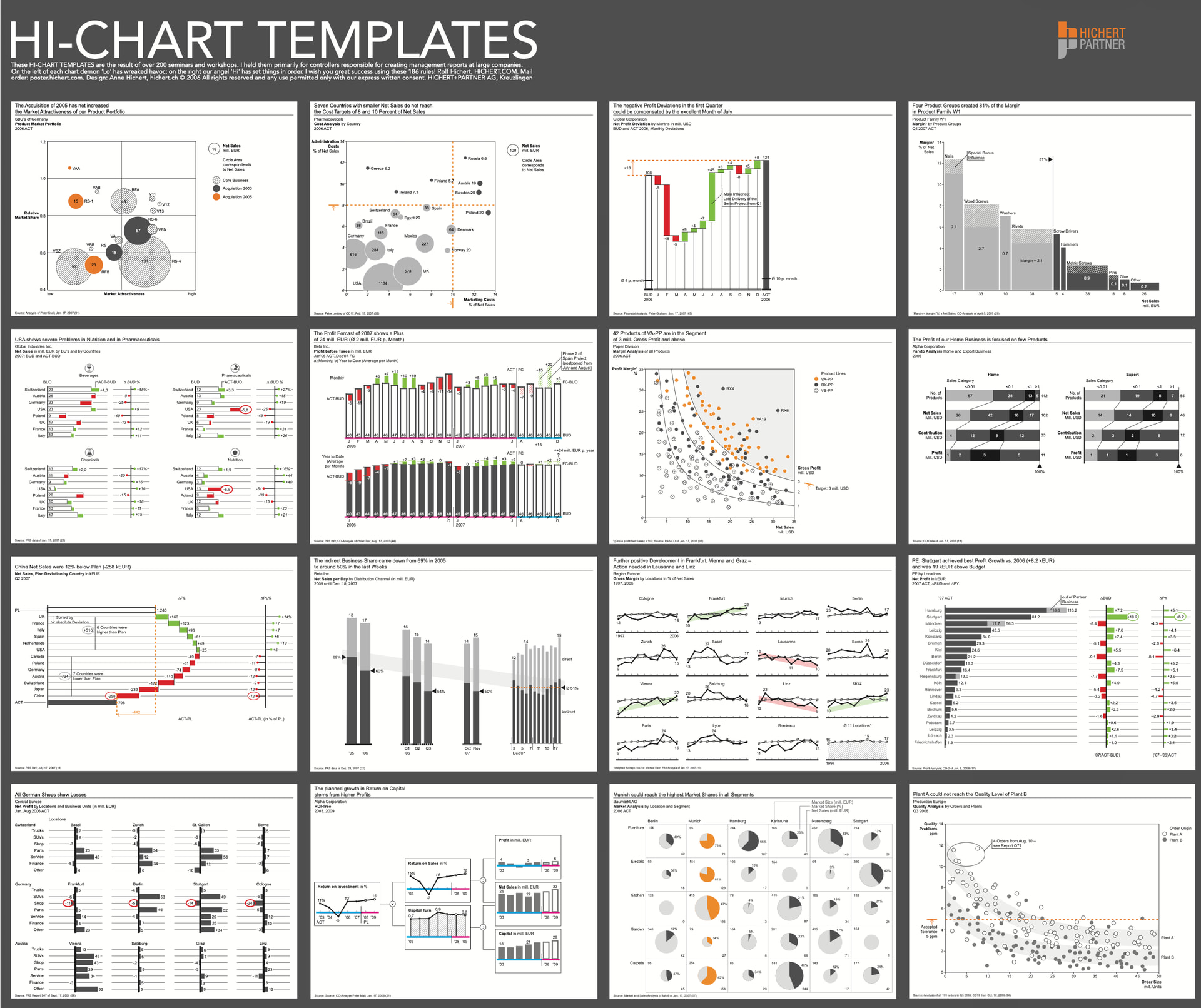
You might be interested in learning something about the past—the beginnings of these charts. The charts in the 2006 poster (see excerpt) were at the very start—back then still with colored axes, “solid–outlined–hatched” only came a few years later…

At that time—20 years ago!—, I had very strict rules regarding colors, spacing, and many other details, which I applied to my own charts then and still apply today. The layout was based on the idea that the font size alone defines all dimensions—for example, line thickness of 0.1 em, number spacing of 0.3 em—and so on.

A little over ten years ago, Jürgen Faisst convinced me that we should not take this quite so rigidly—and building on that, we then defined the IBCS design rules, which will soon form the basis of ISO standard 24896.

In our book “solid–outlined–hatched” Jürgen and I stayed with the original detailed rules, and I am convinced that it makes sense to define everything down to the pixel: I am an engineer by training, and Jürgen is a musician—and in both disciplines, there is very little room for interpretation when it comes to visual representations.

I wish your IBCS Plotly initiative every success and am already curious to hear what you consider to work well—and what does not .

Rolf Hichert

4 Likes

Thank you @rhichert for your support and for working with Jürgen to create IBCS.
We are working with Jürgen on creating python functions that take into account IBCS design rules and uses Plotly Express to create IBCS-based graphs. I’ll keep you updated on progress with that work as well.

Thank you to all the community members that participated in this challenge. We loved seeing the variety of submissions, and the quality was phenomenal. In fact, the submissions are great proof of how Plotly Studio can be used to generate charts that follow very specific guidelines.

After reviewing all the submissions, the Plotly team has selected the top 3… :drum:

:3rd_place_medal:

Third place goes to @Ester for the following prompt: (click to expand:)

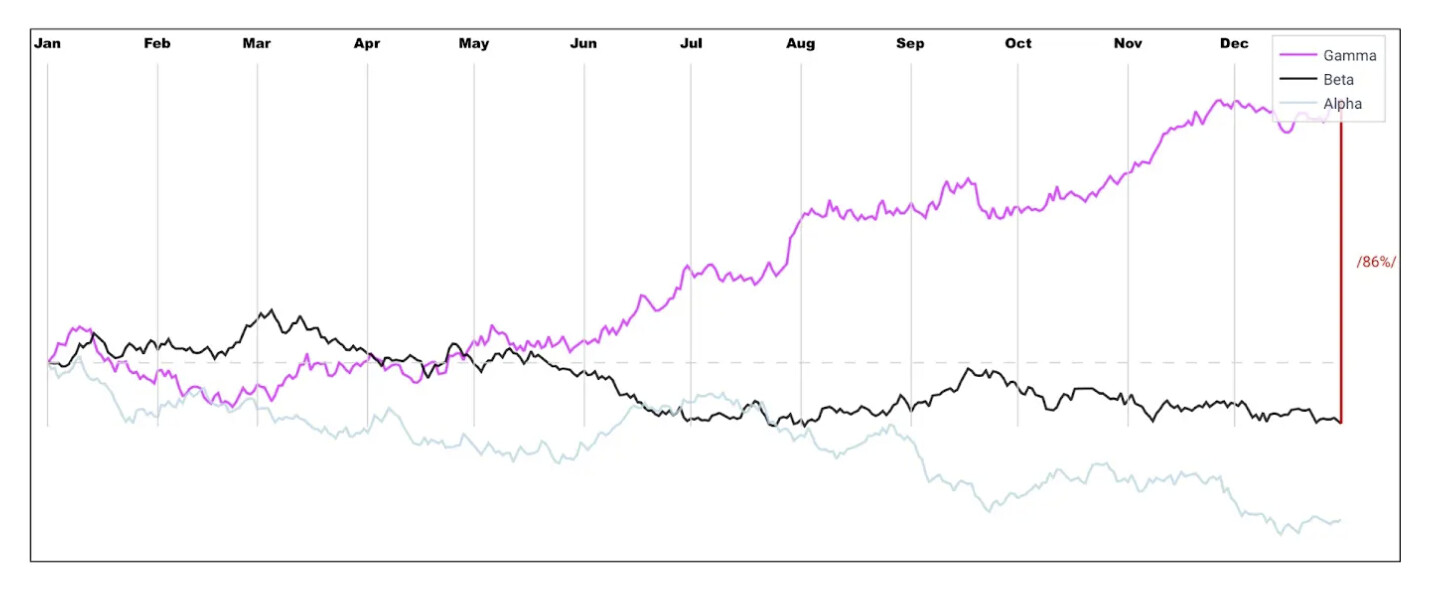
Create an IBCS-style multi-line stock chart: Gamma-magenta, Beta-black, Alpha-lightblue.

I want to see the daily data on x axis.

Filters: Date and company filters

Show horizontal gridline only at index 100 and all monthly vertical gridlines.

Show the company name (Alpha, Beta, Gamma) as the legend on the end of each lines.

I dont need x and y axis title and show only the sorted month names wit the first three letters.

I dont need on y axis the labels.

Show the numbers with bold font at the months on the chart.

Color the the last vertical gridline from Beta endpoint 100 to Gamma endpoint 7 for red 2px line, and beside this show the difference in percentage.

Enable plotly drawing tools.


We ran the prompt on a similar dataset to the IBCS C07A data and the resulting graph was:

Although the months were labeled on top of the chart instead of the bottom of the chart, this line chart is fairly similar to the original 07A chart.

:2nd_place_medal:
Second place goes to @ChartCrimes for the following prompt.

We ran their prompt on a similar dataset to the IBCS C04A data and the resulting graph was:

Although there was some overfitting results due to the detail of the prompt, the final chat was very similar to the original 04A chart.

:1st_place_medal:
First place goes to @deepa-shalini for the following prompt.

We ran her prompt on a similar dataset to the IBCS C09C data and the resulting graph was:

In this case, very few things needed change when compared to the original 09C chart. A more prominent shaded area could have been helpful and the location of the y and x axis titles could have been modified; however, the final chart was almost identical to the original.

Congratulations to our winners and thank you again to all the community members who participated in this challenge. Next challenge coming up in March - Stay tuned!

1 Like

Thank you for the recognition. I really appreciate it.

Congratulations to @deepa-shalini on taking 1st place. It was indeed a very comprehensive prompt.

Congrats as well to @Ester. I also found your other C10: Bubble Charts prompt excellent and deserving of a shout-out.

I’ll be putting the prize money toward a Plotly Studio subscription.

Thanks again to the organizers and everyone involved.

3 Likes

Thank you very much for the recognition and the award. :folded_hands:t3: Congratulations to both of our other winners and everyone else who participated! .:tada:

3 Likes