Code
import pandas as pd
import plotly.express as px
import plotly.graph_objects as go
from dash import Dash, dcc, html, Input, Output, callback, State
import dash_bootstrap_components as dbc

# Load the food waste by country data
# The header is on row 3 (0-indexed), so we skip the first 3 rows and use row 3 as header
df_country = pd.read_csv('food waste by country.csv', skiprows=3, header=0)

# The first column is actually 'AVERAGE' but contains country names
# Let's rename the columns properly
df_country.columns = ['Country', 'combined_figures', 'household_estimate', 'household_tonnes',
                      'retail_estimate', 'retail_tonnes', 'food_service_estimate', 'food_service_tonnes',
                      'confidence', 'm49_code', 'region', 'source']

# Clean the data
df_country = df_country.dropna(subset=['Country'])
df_country = df_country[df_country['Country'] != 'AVERAGE']
df_country = df_country[df_country['Country'].notna()]

# Convert numeric columns to proper format
numeric_columns = ['combined_figures', 'household_estimate', 'retail_estimate', 'food_service_estimate']
for col in numeric_columns:
    df_country[col] = pd.to_numeric(df_country[col], errors='coerce')

# Initialize Dash app with Bootstrap theme
app = Dash(__name__, external_stylesheets=[dbc.themes.BOOTSTRAP])

# Custom CSS for table styling
app.index_string = '''
<!DOCTYPE html>
<html>
    <head>
        {%metas%}
        <title>{%title%}</title>
        {%favicon%}
        {%css%}
        <style>
            /* Custom table styling */
            .table-striped > tbody > tr:nth-of-type(odd) > td {
                background-color: #e3f2fd;
                color: #000000;
            }
            .table-striped > tbody > tr:nth-of-type(even) > td {
                background-color: #bbdefb;
                color: #000000;
            }
            .table-hover > tbody > tr:hover > td {
                background-color: #90caf9 !important;
            }
            .table thead th {
                background-color: #1976d2 !important;
                color: #ffffff !important;
                font-weight: bold;
            }
        </style>
    </head>
    <body>
        {%app_entry%}
        <footer>
            {%config%}
            {%scripts%}
            {%renderer%}
        </footer>
    </body>
</html>
'''

# Create the dashboard layout
app.layout = dbc.Container([
    # Header with infographic style
    dbc.Row([
        dbc.Col([
            html.Div([
                html.H1("GLOBAL FOOD WASTE CRISIS",
                       style={'color': '#ffffff', 'fontWeight': 'bold', 'fontSize': '3rem',
                              'textAlign': 'center', 'marginBottom': '10px', 'textShadow': '2px 2px 4px rgba(0,0,0,0.3)'}),
                html.H2("DATA VISUALIZATION DASHBOARD",
                       style={'color': '#ffffff', 'fontWeight': '300', 'fontSize': '1.5rem',
                              'textAlign': 'center', 'marginBottom': '20px'}),
                html.Div([
                    html.P("200+ COUNTRIES ANALYZED",
                           style={'display': 'inline-block', 'margin': '10px 20px', 'fontSize': '1.2rem',
                                  'fontWeight': 'bold', 'color': '#ffffff'}),
                    html.P("REAL-TIME DATA",
                           style={'display': 'inline-block', 'margin': '10px 20px', 'fontSize': '1.2rem',
                                  'fontWeight': 'bold', 'color': '#ffffff'}),
                    html.P("INTERACTIVE FILTERS",
                           style={'display': 'inline-block', 'margin': '10px 20px', 'fontSize': '1.2rem',
                                  'fontWeight': 'bold', 'color': '#ffffff'})
                ], style={'textAlign': 'center', 'marginBottom': '30px'})
            ], style={'background': 'linear-gradient(135deg, #0c4a6e 0%, #3b82f6 50%, #fb923c 100%)',
                      'padding': '40px', 'borderRadius': '15px', 'marginBottom': '30px',
                      'boxShadow': '0 10px 30px rgba(0,0,0,0.2)'})
        ])
    ]),

    # Summary cards
    dbc.Row([
        dbc.Col([
            dbc.Card([
                dbc.CardBody([
                    html.H4("🌎 Countries", className="card-title"),
                    html.H2(f"{len(df_country)}", className="text-primary"),
                    html.P("Total countries analyzed", className="card-text")
                ])
            ], className="text-center", style={'border': '2px solid white', 'boxShadow': '0 4px 8px rgba(0,0,0,0.1)'})
        ], width=3),
        dbc.Col([
            dbc.Card([
                dbc.CardBody([
                    html.H4("📊 Avg Waste", className="card-title"),
                    html.H2(f"{df_country['combined_figures'].mean():.0f} kg", className="text-warning"),
                    html.P("Per capita per year", className="card-text")
                ])
            ], className="text-center", style={'border': '2px solid white', 'boxShadow': '0 4px 8px rgba(0,0,0,0.1)'})
        ], width=3),
        dbc.Col([
            dbc.Card([
                dbc.CardBody([
                    html.H4("🏠 Household", className="card-title"),
                    html.H2(f"{df_country['household_estimate'].mean():.0f} kg", className="text-primary"),
                    html.P("Household waste per capita", className="card-text")
                ])
            ], className="text-center", style={'border': '2px solid white', 'boxShadow': '0 4px 8px rgba(0,0,0,0.1)'})
        ], width=3),
        dbc.Col([
            dbc.Card([
                dbc.CardBody([
                    html.H4("🏪 Retail", className="card-title"),
                    html.H2(f"{df_country['retail_estimate'].mean():.0f} kg", className="text-info"),
                    html.P("Retail waste per capita", className="card-text")
                ])
            ], className="text-center", style={'border': '2px solid white', 'boxShadow': '0 4px 8px rgba(0,0,0,0.1)'})
        ], width=3)
    ], className="mb-4"),

    # Interactive filters at the top
    dbc.Row([
        dbc.Col([
            html.Div([
                dbc.Row([
                    dbc.Col([
                        html.Label("Select Confidence Level:", style={'fontWeight': 'bold', 'color': '#000000'}),
                        dcc.Dropdown(id='confidence-filter',
                                     options=[{'label': conf, 'value': conf} for conf in df_country['confidence'].unique()],
                                     value=[], placeholder="All Confidence Levels", clearable=True, style={'boxShadow': 'none'}, multi=True),
                        html.Br(),
                        html.Label("Select Country:", style={'fontWeight': 'bold', 'color': '#000000'}),
                        dcc.Dropdown(id='country-filter',
                                     options=[{'label': country, 'value': country} for country in sorted(df_country['Country'].unique())],
                                     value=[], placeholder="Select Countries", clearable=True, style={'boxShadow': 'none'}, multi=True),
                        html.Br(),
                        html.Label("Display Options:", style={'fontWeight': 'bold', 'color': '#000000'}),
                        dcc.Checklist(id='country-display-filter',
                                      options=[{'label': 'All Countries', 'value': 'all'},
                                               {'label': 'Top 10', 'value': 'top10'},
                                               {'label': 'Bottom 10', 'value': 'bottom10'}],
                                      value=['top10'],
                                      labelStyle={'display': 'inline-block', 'marginRight': '15px'}),
                        html.Br(),
                        html.Label("Select Map Projection:", style={'fontWeight': 'bold', 'color': '#000000', 'marginTop': '10px'}),
                        dcc.Dropdown(id='map-projection-filter',
                                     options=[
                                         {'label': 'Equirectangular', 'value': 'equirectangular'},
                                         {'label': 'Mercator', 'value': 'mercator'},
                                         {'label': 'Orthographic', 'value': 'orthographic'},
                                         {'label': 'Natural Earth', 'value': 'natural earth'},
                                     ], value='equirectangular', clearable=False),
                        html.Br(),
                        html.Label("Select Map Color Scale:", style={'fontWeight': 'bold', 'color': '#000000'}),
                        dcc.Dropdown(id='map-color-filter',
                                     options=[{'label': color, 'value': color} for color in ['Oranges', 'Blues', 'Reds', 'Greens', 'Viridis']],
                                     value='Oranges', clearable=False),
                        html.Br(),
                        dbc.Button("Reset Filters", id="reset-button", color="secondary", className="w-100 mt-4")
                    ], width=5),
                    dbc.Col([
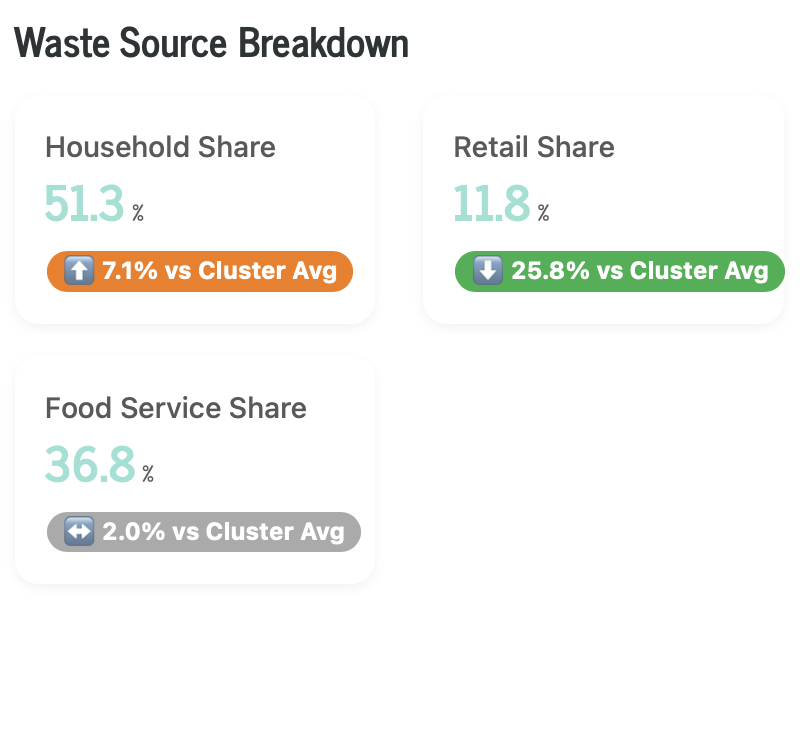
                        html.H5("WASTE BY SOURCE", id='pie-chart-title', style={'textAlign': 'center', 'fontWeight': 'bold'}),
                        dcc.Graph(id='waste-source-pie-chart', style={'height': '350px'}, config={'displayModeBar': False})
                    ], width=7)
                ], align="center")
            ], style={'background': 'rgba(255,255,255,0.9)', 'padding': '20px', 'borderRadius': '10px',
                      'marginBottom': '30px',
                      'boxShadow': '0 8px 20px rgba(0,0,0,0.15)'})
        ])
    ]),

    # Charts row - Two charts side-by-side
    dbc.Row([
        # Top 20 countries bar chart
        dbc.Col([
            html.Div([
                html.H3("TOP COUNTRIES", id='top-countries-title',
                       style={'color': '#000000', 'fontWeight': 'bold', 'textAlign': 'center', 'marginBottom': '10px', 'fontSize': '1.8rem'}),
                html.P("Countries with highest food waste per capita",
                       style={'color': '#000000', 'textAlign': 'center', 'marginBottom': '20px',
                              'fontSize': '1.1rem', 'fontStyle': 'italic'}),
                dcc.Graph(id='top-countries-chart', style={'height': '500px'})
            ], style={'background': 'rgba(255,255,255,0.9)', 'padding': '20px', 'borderRadius': '10px',
                      'boxShadow': '0 5px 15px rgba(0,0,0,0.1)', 'height': '600px'})
        ], width=6),

        # World Map
        dbc.Col([
            html.Div([
                html.H3("GLOBAL FOOD WASTE MAP", id='world-map-title',
                       style={'color': '#000000', 'fontWeight': 'bold', 'textAlign': 'center', 'marginBottom': '10px', 'fontSize': '1.8rem'}),
                html.P("Food waste per capita by country worldwide",
                       style={'color': '#000000', 'textAlign': 'center', 'marginBottom': '20px',
                              'fontSize': '1.1rem', 'fontStyle': 'italic'}),
                dcc.Graph(id='world-map-chart', style={'height': '500px'})
            ], style={'background': 'rgba(255,255,255,0.9)', 'padding': '20px', 'borderRadius': '10px',
                      'boxShadow': '0 5px 15px rgba(0,0,0,0.1)', 'height': '600px'})
        ], width=6)
    ]),


], fluid=True)

# Callback to reset all filters
@callback(
    [Output('confidence-filter', 'value'),
     Output('country-filter', 'value'),
     Output('country-display-filter', 'value'),
     Output('map-projection-filter', 'value'),
     Output('map-color-filter', 'value')],
    Input('reset-button', 'n_clicks'),
    prevent_initial_call=True
)
def reset_all_filters(n_clicks):
    # Return the default values for each filter:
    # - Empty lists for the multi-select dropdowns
    # - ['top10'] for the checklist
    return [], [], ['top10'], 'equirectangular', 'Oranges'

# Callback for interactive filtering - Top Countries Chart
@callback(
    [Output('top-countries-chart', 'figure'),
     Output('top-countries-title', 'children')],
    [Input('confidence-filter', 'value'),
     Input('country-filter', 'value'),
     Input('country-display-filter', 'value')]
)
def update_top_countries_chart(selected_confidence, selected_country, selected_display):
    filtered_df = df_country.copy()
    title = "Top Countries"

    if selected_confidence:
        filtered_df = filtered_df[filtered_df['confidence'].isin(selected_confidence)]

    if selected_country:
        filtered_df = filtered_df[filtered_df['Country'].isin(selected_country)]

    # Checklist returns a list, handle it. Default to 'all' if empty.
    display_mode = selected_display[0] if selected_display else 'all'

    # Sort by waste amount to handle top/bottom/all
    if display_mode == 'top10':
        display_df = filtered_df.nlargest(10, 'combined_figures')
    elif display_mode == 'bottom10':
        # For bottom 10, we need to sort ascending and take the head
        display_df = filtered_df.nsmallest(10, 'combined_figures')
    else: # 'all'
        # Sort descending for the 'all' view for consistency
        display_df = filtered_df.sort_values('combined_figures', ascending=False)

    fig = px.funnel(
        display_df,
        x='combined_figures',
        y='Country',
        title="",
        color_discrete_sequence=['#3b82f6']
    ).update_layout(
        xaxis_title="Food Waste (kg/capita/year)",
        yaxis_title="Country",
        showlegend=False,
        plot_bgcolor='rgba(0,0,0,0)',
        paper_bgcolor='rgba(0,0,0,0)',
        height=500
    )

    return fig, title

# Callback for the new dynamic pie chart (Waste Source)
@callback(
    [Output('waste-source-pie-chart', 'figure'),
     Output('pie-chart-title', 'children')],
    [Input('confidence-filter', 'value'),
     Input('country-filter', 'value')]
)
def update_pie_chart(selected_confidence, selected_country):
    filtered_df = df_country.copy()
    title = "Waste by Source"

    if selected_confidence:
        filtered_df = filtered_df[filtered_df['confidence'].isin(selected_confidence)]

    if selected_country:
        filtered_df = filtered_df[filtered_df['Country'].isin(selected_country)]

    # Calculate the total waste for each sector
    # We use mean() to get the average per-capita waste across the filtered countries
    household_waste = filtered_df['household_estimate'].mean()
    retail_waste = filtered_df['retail_estimate'].mean()
    service_waste = filtered_df['food_service_estimate'].mean()

    # Create a dataframe for the pie chart
    source_df = pd.DataFrame({
        'Source': ['Household', 'Retail', 'Food Service'],
        'Waste (kg/capita)': [household_waste, retail_waste, service_waste]
    })

    # Handle cases with no data to avoid errors
    source_df['Waste (kg/capita)'] = source_df['Waste (kg/capita)'].fillna(0)

    # Determine colors and pull based on the largest value
    pull_values = [0, 0, 0]
    colors = ['#3b82f6', '#0284c7', '#0c4a6e'] # Shades of blue

    if not source_df.empty and source_df['Waste (kg/capita)'].sum() > 0:
        # Find the index of the largest slice
        max_index = source_df['Waste (kg/capita)'].idxmax()

        # Set the largest slice to be pulled out and colored orange
        pull_values[max_index] = 0.2
        colors[max_index] = '#f97316' # Orange

    fig = px.pie(
        source_df,
        values='Waste (kg/capita)',
        names='Source',
        title="",
        # hole=0.7, # Removed to make it a standard pie chart
        color_discrete_sequence=colors
    ).update_traces(
        textinfo='percent+label',
        textfont_size=12,
        pull=pull_values
    ).update_layout(
        showlegend=False,
        plot_bgcolor='rgba(0,0,0,0)',
        paper_bgcolor='rgba(0,0,0,0)',
        margin=dict(l=20, r=20, t=20, b=20)
    )

    return fig, title

# Callback for World Map Chart
@callback(
    [Output('world-map-chart', 'figure'),
     Output('world-map-title', 'children')],
    [Input('confidence-filter', 'value'),
     Input('country-filter', 'value'),
     Input('country-display-filter', 'value'),
     Input('map-projection-filter', 'value'),
     Input('map-color-filter', 'value')]
)
def update_world_map_chart(selected_confidence, selected_country, selected_display, map_projection, map_color):
    filtered_df = df_country.copy()

    title = "Global Food Waste Map"
    if selected_confidence:
        filtered_df = filtered_df[filtered_df['confidence'].isin(selected_confidence)]

    if selected_country:
        filtered_df = filtered_df[filtered_df['Country'].isin(selected_country)]

    # Apply the same display logic as the bar chart
    display_mode = selected_display[0] if selected_display else 'all'

    if display_mode == 'top10':
        display_df = filtered_df.nlargest(10, 'combined_figures')
    elif display_mode == 'bottom10':
        display_df = filtered_df.nsmallest(10, 'combined_figures')
    else: # 'all'
        display_df = filtered_df

    # Create a simple choropleth map using plotly
    fig = px.choropleth(
        display_df,
        locations='Country',
        locationmode='country names',
        color='combined_figures',
        hover_name='Country',
        hover_data=['region', 'confidence', 'household_estimate'],
        color_continuous_scale=map_color,
        title=""
    )

    fig.update_layout(
        plot_bgcolor='rgba(0,0,0,0)',
        paper_bgcolor='rgba(0,0,0,0)',
        geo=dict(
            showframe=False,
            showcoastlines=True,
            projection_type=map_projection
        ),
        height=500
    )

    return fig, title

# Run the app
if __name__ == '__main__':
    app.run(debug=True)
 Thank you to @Ester for the code and sample figure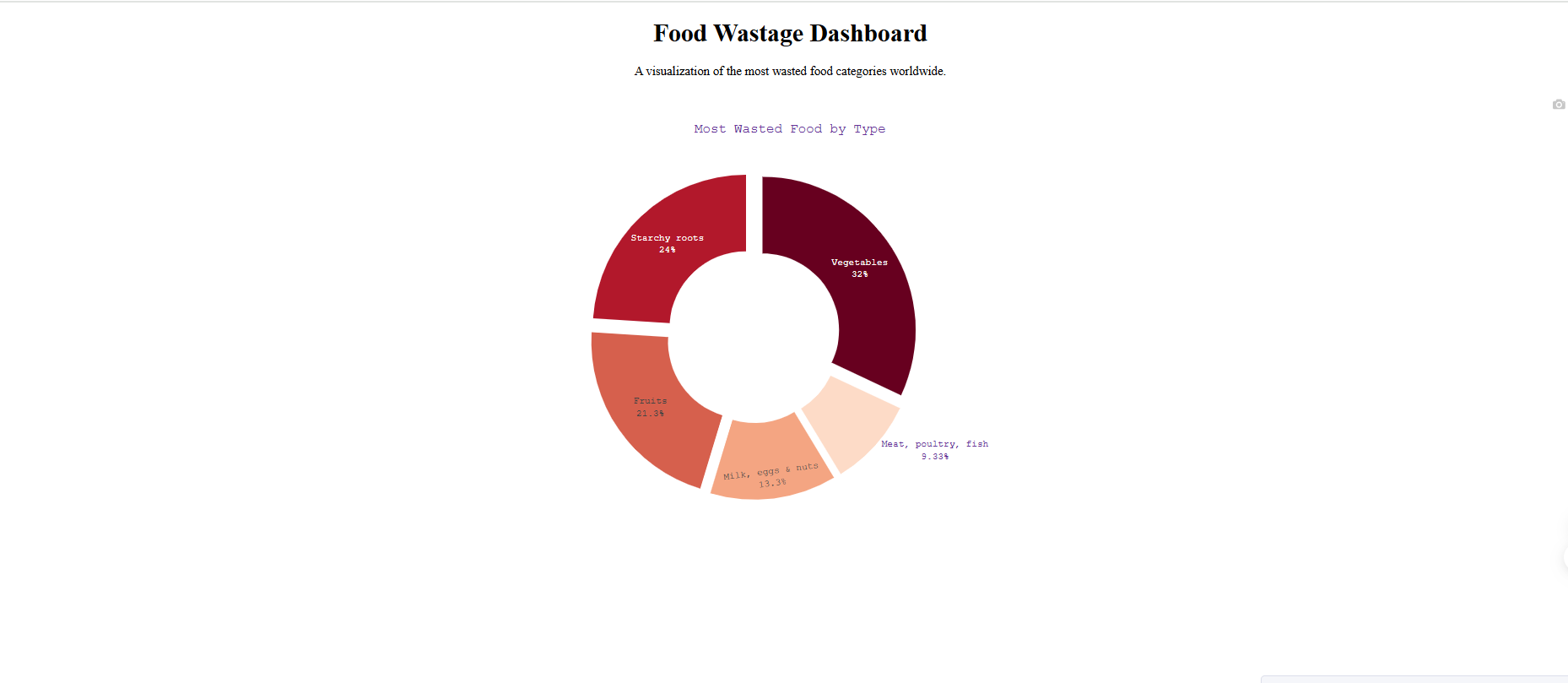

 If you prefer to collaborate with others on Discord, join the Plotly Discord channel.