Hey everyone,
We are excited to announce the launch of the Dash Docs Model Context Protocol (MCP) server!
If you are using AI coding assistants like Claude Code, Cursor, Windsurf, or ChatGPT to build your Dash applications, this will support the process. Instead of copy-pasting documentation or dealing with LLMs working from outdated training data about Dash, the Dash Docs MCP server lets your AI agents search and read the most up-to-date Dash documentation directly from your development environment.
What Your AI Agent Can Do
Once connected, your AI assistant can browse the full documentation, search for topics by keyword, and read the content of any page as Markdown. You don’t need to tell it which tool to use; just ask your question or build the app and it will manage the rest.
Quick Start Example
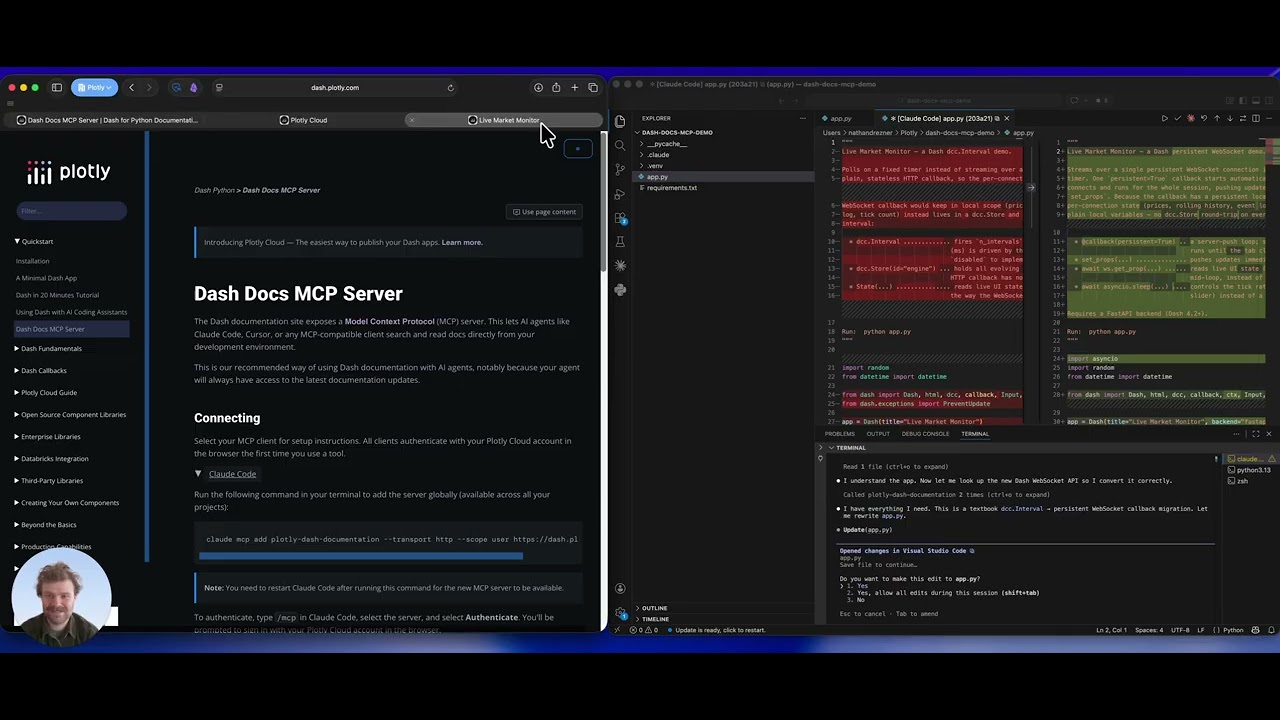
Connecting your favorite AI client is straightforward. Most clients authenticate securely via your Plotly Cloud account in the browser the first time you run a tool. Here is how to get started with Claude Code:
Run the following command in your terminal to add the server globally:
claude mcp add plotly-dash-documentation --transport http --scope user https://dash.plotly.com/_mcp
Note: Remember to restart Claude Code after running this command. To authenticate, type /mcp in Claude Code, select the server, and click Authenticate.
 For the complete list of setup instructions, check out our official docs.
 Join us at the live webinar to learn more.
 For the video tutorial: